
How-to guides
Double Opt In: A Step-by-Step Guide
Double opt in can improve email deliverability. Learn how to set it up, with step-by-step instructions for any email platform, and fixes for common pitfalls.
Double opt in asks a person to confirm their email before you add them to your list. After they fill out your form, they get a message with a link or button. They become a subscriber once they click.
You can use double opt in with any email service that offers it. This guide shows you how to set it up, fix common snags, and improve results once it is running.
Leadpages data
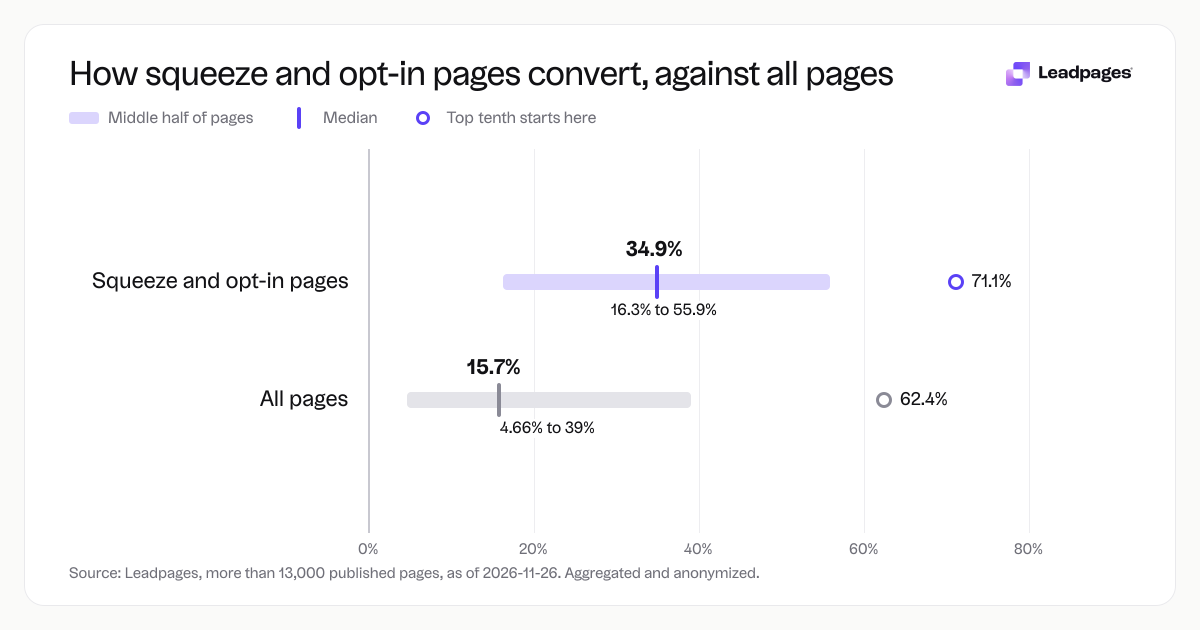
Conversion rates for squeeze and opt-in pages published with Leadpages, compared with all pages
more than 13,000 published pagesAs of November 26, 2026
34.9%
Median conversion rate, squeeze and opt-in pages
16.3%
Bottom quarter converts below, squeeze and opt-in pages
55.9%
Top quarter converts above, squeeze and opt-in pages
| Measure | Value |
|---|---|
| Median conversion rate, squeeze and opt-in pages | 34.9% |
| Bottom quarter converts below, squeeze and opt-in pages | 16.3% |
| Top quarter converts above, squeeze and opt-in pages | 55.9% |
| Top tenth converts above, squeeze and opt-in pages | 71.1% |
| Share converting at 10% or better, squeeze and opt-in pages | 83.2% |
| Median conversion rate, all pages | 15.7% |
| Bottom quarter converts below, all pages | 4.66% |
| Top quarter converts above, all pages | 39% |
| Top tenth converts above, all pages | 62.4% |
| Share converting at 10% or better, all pages | 59.9% |
Median conversion rate, squeeze and opt-in pages
Bottom quarter converts below, squeeze and opt-in pages
Top quarter converts above, squeeze and opt-in pages
Top tenth converts above, squeeze and opt-in pages
Share converting at 10% or better, squeeze and opt-in pages
Median conversion rate, all pages
Bottom quarter converts below, all pages
Top quarter converts above, all pages
Top tenth converts above, all pages
Share converting at 10% or better, all pages
Based on more than 13,000 published pages. As of November 26, 2026.
What double opt in is and when to use it
Double opt in (also called confirmed opt in) adds a short check between form submit and joining your list. Single opt in adds them right away. Double opt in confirms the address is valid and that the person meant to sign up. This reduces spam complaints and helps sender reputation. Email providers pay attention to engagement, and lists built with double opt in often see better opens and clicks.
The downside is that some people won't confirm. You may add fewer total subscribers, but the ones who do confirm are usually more interested. For many small businesses, that trade works.
Getting the initial sign-up is step one. Across pages published with Leadpages, squeeze and opt-in pages (pages built to collect an email address) have a median conversion rate of 34.9%. The top quarter convert above 55.9%. These figures come from more than 13,000 Leadpages Classic pages that recorded conversions, measured as conversions per unique visitor over each page's lifetime. Double opt in then narrows those sign-ups to the people who want to hear from you.
Good uses include a weekly newsletter, a course waitlist, or product updates. If you offer an instant lead magnet like a PDF checklist and people expect immediate access, you could use single opt in for that delivery but still use double opt in for your main newsletter. For example, a yoga studio can give new students a welcome PDF right after form submit, but use double opt in for its weekly class updates.
How to set up double opt in, step by step
This works with any tool. Here is the process, with notes on where Leadpages fits.
-
Pick an email service that supports double opt in. Examples include Mailchimp, Kit (formerly ConvertKit), ActiveCampaign, and MailerLite. Create an account and set up your first list. In Leadpages, you build the landing page and connect your form to that list. The email service handles confirmations.
-
Turn on double opt in. In your email service, open the list settings and find the double opt in or confirmed opt in control. Enable it so every new contact gets a confirmation email.
-
Build the sign-up page. Create a simple page with a clear headline, a line on what they'll get, and a form. Short forms work well. First name and email is enough. In Leadpages, drag a form block onto your page, add the fields, then connect the form to your email service using the integration. See how Leadpages form collection works for the setup steps.
-
Customize the confirmation email. Edit the subject and body. Make the ask clear: "Confirm your email to get the weekly tips". Use one obvious button or link. Explain what happens next. If available, set the from name and add your logo.
-
Set the confirmation landing page. After someone clicks the link, send them to a page you control. Your email service likely has a default page, but you can often set a custom URL. Build a simple thank-you page (in Leadpages or on your site) that confirms they are in and gives the next step, like a link to the resource you offered or a 30-second welcome video.
-
Send a reminder to non-confirmers. If your email service offers it, enable an automatic second confirmation email after a day or two. If it does not, you can manually resend to unconfirmed contacts after a few days with a short nudge.
-
Test end to end. Use your own email. Submit the form, find the confirmation email (check spam and promotions), click confirm, view the thank-you page, and verify you appear in the right list. Repeat on a mobile phone.
If you use Leadpages, run your page through the free landing page analyzer before launch. It gives a score and suggestions. To compare two page versions, set up A/B testing inside Leadpages and see which one gets more sign-ups.
Common problems with double opt in (and how to fix them)
Confirmation email goes to spam. Check that your email service has SPF and DKIM set for your domain. Many do this for you, but confirm it. Keep the email simple, with plain text or one image and a clear link. Test with a spam checker before you go live.
People miss the email and never confirm. Right after form submit, use the on-page message to set the expectation: "Check your inbox for a confirmation email. If you don't see it within a few minutes, check spam or promotions." This small prompt can lift confirmations.
Confirmation link is broken or expires. Test the link your email service generates. Avoid link shorteners that some filters block. If a link expires after a few days and someone reaches out, either resend the email or confirm them manually if your policy allows it.
Low confirmation rate. Compare form submissions to confirmations. If fewer than half confirm, improve the incentive or timing. Try a subject line that restates the benefit. Consider your traffic quality. A more specific landing page message often attracts people who care and will confirm. For instance, "Weekly home-safety tips for Chicago homeowners" sets clear expectations and draws the right audience.
You need instant delivery for a lead magnet. You have two options. Show the download on the post-submit page before they confirm. This works for less sensitive assets. Or use single opt in for that one list and keep double opt in for your newsletter. Tag people by source so you can adjust messaging later.
What to do after you turn on double opt in
Once the flow is live, improve each step. Start with the landing page because that is the top of the funnel. Across Leadpages, opt-in pages show a median conversion rate of 34.9%, and the top tenth convert above 71.1%. That gap means there is room to improve. Test a tighter headline, a shorter form, or a clearer call to action. Use the A/B test significance calculator to know when you have enough data to choose a winner.
Then refine the confirmation email. If many people submit but do not confirm, change the subject or send time. Some services let you test the confirmation email. If not, send a couple of versions to yourself and a few colleagues or friends and ask which one they would open and click.
Watch what happens after confirmation. Are new subscribers opening your welcome email? If not, the filter is working, but the welcome needs work. Shorten the email. State the value in the first line. Add a single next step.
Create a checklist you use every time you publish a new opt-in page:
- Enable double opt in on the target list.
- Test the full flow on desktop and mobile.
- Add a clear prompt on the post-submit message with inbox and spam-folder instructions.
- Set a custom confirmation thank-you page with the next action.
- Turn on a reminder for non-confirmers if your service offers it.
This habit keeps your list clean and helps deliverability.
Next, start building your double opt-in landing page. Start building free.
A note on the data: The conversion rates mentioned are from an analysis of more than 13,000 pages published with Leadpages. The data is aggregated and anonymized, as of 2026-11-26.