
How-to guides
How to Set Up a LinkedIn Lead Form (and Turn Clicks Into Leads)
Learn what a LinkedIn lead form is and how to create one step by step. Practical tips for common problems, plus form field data to improve conversions.
A LinkedIn lead form is a form that opens inside the LinkedIn app or website when someone clicks your ad. It pulls the user’s name, email, job title and other details from their profile, so they can submit with one tap. You retrieve the leads from LinkedIn Campaign Manager or pipe them to your CRM. This removes a landing page hop and often boosts submissions on mobile.
Leadpages data
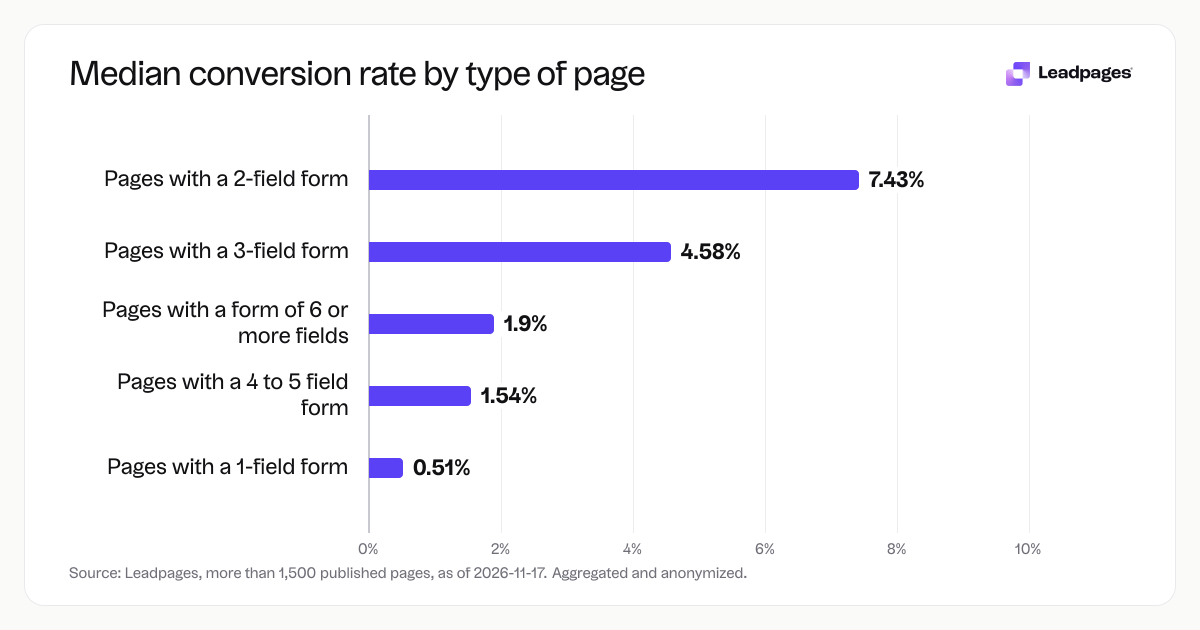
Form conversion rates for pages published with Leadpages, by number of form fields, over the 90 days to 2026-11-16. A form conversion rate is the share of visits to a page in which the visitor submitted its form. Each figure is a median or quartile across pages. It describes the pages in a group, not what causes the difference between groups.
more than 1,500 published pagesAs of November 17, 2026
0.51%
Median form conversion rate, pages with a 1-field form
7.43%
Median form conversion rate, pages with a 2-field form
4.58%
Median form conversion rate, pages with a 3-field form
| Measure | Value |
|---|---|
| Median form conversion rate, pages with a 1-field form | 0.51% |
| Median form conversion rate, pages with a 2-field form | 7.43% |
| Median form conversion rate, pages with a 3-field form | 4.58% |
| Median form conversion rate, pages with a 4 to 5 field form | 1.54% |
| Median form conversion rate, pages with a form of 6 or more fields | 1.9% |
Median form conversion rate, pages with a 1-field form
Median form conversion rate, pages with a 2-field form
Median form conversion rate, pages with a 3-field form
Median form conversion rate, pages with a 4 to 5 field form
Median form conversion rate, pages with a form of 6 or more fields
Based on more than 1,500 published pages. As of November 17, 2026.
The short answer
A LinkedIn lead form does the work of a landing page form but appears right where the user is. It comes pre-filled with their LinkedIn data. The user confirms or edits the fields and taps submit. You get the lead without them leaving LinkedIn.
You can use a LinkedIn lead form instead of a separate landing page, or you can run LinkedIn ads that point to a landing page with your own form. The trade-off is simple. The native form is faster for the user and can capture leads directly in LinkedIn, but you give up the chance to warm people up with a full landing page. Many marketers run both: one campaign with LinkedIn lead forms for quick sign-ups, another with a landing page for people who need more context first.
If you send traffic to your own landing page, keep the form brief. Across pages published with Leadpages, 2-field forms had the highest median conversion rate, at 7.43%. By the time you reach 4 or 5 fields, the median drops to 1.54%. That pattern holds if you collect leads through LinkedIn’s native form or your own page. Friction cuts conversions.
Step by step
1. Choose the ad format that supports lead forms
LinkedIn lead forms work with Sponsored Content and Sponsored Messaging (conversation or message ads). They are not available for text ads, dynamic ads or video-only campaigns. In Campaign Manager, pick a campaign objective that allows a lead gen form, such as "Lead generation." The objective is your first dropdown when you create a campaign. That selection tells LinkedIn which ad formats and bidding options to show next.
If your goal is to send people to a landing page with a longer form or a specific offer, choose "Website visits" or "Website conversions" instead. You can still capture leads through a landing page form. In that case, use Leadpages to build the page. The landing page builder gives you a drag-and-drop editor and forms that connect to your email tool or CRM.
2. Create the lead gen form inside Campaign Manager
Once you have the campaign, you will see an option to attach a lead gen form during ad setup. Click "Create new form" or choose an existing one. LinkedIn asks for a form name, a headline and optional body text. The headline can be "Get the free guide" or "Save your spot for the webinar." These appear inside the form card.
Now add the fields that LinkedIn will pull from the user’s profile. Common picks are:
- First and last name
- Email address
- Phone number (if you really need it)
- Job title
- Company name
- Seniority
For many campaigns, name and email are enough. Adding more fields can make people hesitate, and you may see a lower completion rate. In fact, pages published with Leadpages that use a 3-field form convert at a median rate of 4.58%, below the 7.43% from 2-field forms. If you ask for more than three pieces of information, test whether the quality gain is worth the drop in volume.
You can also add custom questions, like "What is your biggest challenge right now?" or a multiple-choice question about their role. Keep custom questions to one. Each extra step inside the form will lose some people.
3. Set your privacy policy link and consent checkbox
LinkedIn requires a link to your privacy policy. You can reuse the same link across forms. Below that, there is an option to add a custom consent checkbox for email marketing, which is mandatory in some regions. The checkbox statement might read: "I agree to receive marketing emails from [company name]. I can unsubscribe at any time." Turn this on if you plan to email the leads. The form will not publish without the privacy policy link.
4. Attach the form to your ad and launch
In the ad setup, pick the lead gen form you just created from the dropdown. LinkedIn shows a preview of how the form will appear on mobile and desktop. Check that the headline and button text (which defaults to "Submit") read well. For Sponsored Content, add intro text and ad creative that states what the person gets after submitting: a PDF, a trial, a demo call, or an event registration.
Set your targeting, budget and schedule. Then launch. LinkedIn will review the ad. Once it is approved, clicks on the ad will open the form in-line.
5. Download or send your leads
When submissions come in, you can download them as a CSV from the "Lead gen forms" table inside Campaign Manager. More practical: connect the form to your CRM or email platform through a direct integration or an intermediary like Zapier. LinkedIn offers native integrations with several marketing automation tools. If yours is not listed, use webhooks or schedule a daily download.
If you built a landing page with Leadpages instead, the leads flow into the connected email service as soon as the form is submitted. Leadpages' form collection can hand them to Mailchimp, HubSpot, ActiveCampaign, or any tool that accepts a webhook. You do not wait on a CSV export.
6. Test a landing page variant with a short form
Even if LinkedIn lead forms work for you, run a second campaign that sends the same audience to a landing page with a 2-field form. Use an A/B test calculator to check whether the difference in conversion rate is real. Across Leadpages pages, 2-field forms convert at a median of 7.43%, and 1-field forms convert at 0.51%. A single field (often an email-only form) can look incomplete and raise suspicion. Two fields (name and email) often feel standard enough that people fill them out quickly.
Common problems
Leads are not showing up in my CRM
This usually happens because the integration was not authorized correctly. In Campaign Manager, go to "Lead gen forms" and check the integration status. If you are using Zapier, confirm that the zap is active and has the right permissions. A manual download from the table is a quick fix while you sort the integration. If you use a Leadpages landing page form, check the form’s integration settings in the page editor, and send a test submission to make sure data flows end to end.
The lead form does not appear, or users see an error
On mobile, the LinkedIn app must be up to date. Older app versions can fail to render lead forms. LinkedIn ad review can also reject a form if the privacy policy link is missing or broken. Double-check the form preview inside Campaign Manager. If everything looks correct there, the problem is likely on the user’s side. Try triggering your own ad (where targeting allows) to see the live experience.
Lead quality is too low
A quick-fill form can attract people who click out of curiosity and then never respond. To improve quality, add one custom multiple-choice question that qualifies intent. For example, a SaaS company might ask, "How many employees work at your company?" with ranges. That question alone can filter out students or casual browsers. Be careful not to stack qualification questions; more fields cut conversions fast. Forms with 6 or more fields on Leadpages pages have a median conversion rate of 1.9%, and adding qualification steps on a LinkedIn form shows a similar pattern.
Submissions drop after adding a phone field
Phone number is a friction point. People guard their phone number more than their work email. If you must collect it, make it optional or explain why you need it ("so we can text you the access link"). Even then, expect a meaningful drop. A better path is to ask for email and name only, then request a phone number later in an email follow-up or during a live call booking.
The form converts, but people do not remember signing up
This happens when the offer after the click is not memorable. The LinkedIn form’s inline experience can be so fast that people forget what they opted into. To fix it, add a short "thank you" screen inside the form builder with a line like, "Check your inbox for the SEO checklist in the next five minutes." Then make sure the first email arrives quickly. If you use a landing page, set a confirmation message that repeats the offer and tells them where to look.
What to do next
Once leads come in, group them by the campaign and offer they responded to. Send a tailored follow-up that same day. If you collected leads for a webinar, email the calendar link and a brief agenda. If you offered a free guide, deliver it and mention a next step (like a demo).
Measure what is working and what is not. Use Leadpages’ landing page analyzer to score your page’s message and structure if you send traffic there. For LinkedIn lead forms, compare campaigns by cost per lead and lead-to-customer rate, not just raw volume.
Keep a steady testing rhythm. Test one form opener against another, or test a LinkedIn lead form against a landing page with the same offer. The A/B testing tool in Leadpages lets you split traffic to two variants and declare a winner when you reach a strong confidence level. That way you are not guessing which format works better for your audience.
Build a landing page that matches your LinkedIn ad’s promise, and keep the form short. From our data, 2-field forms are a good starting point. Start with a template and adjust from there. Sign up for a free trial and start building free: /free-trial.
How we measured this
The form conversion figures in this guide come from more than 1,500 pages published with Leadpages over the 90 days to 2026-11-16, as of 2026-11-17. Each figure is the median form conversion rate (the share of visits where a form was submitted) for pages grouped by the number of form fields on the page, from 1 field up to 6 or more. The pages are aggregated and anonymized. The numbers describe the group, not what causes any individual page’s result.